RefControl
RefControl is an extension for Firefox
that lets you control what gets sent as the HTTP
Referer
on a per-site basis.
This can be useful in a number of situations:
- Privacy - Perhaps you think webmasters don't have any business knowing where you found the link to their site. You can configure RefControl to not send the referrer to any site except for ones you explicitly list.
- Broken sites - Some sites perform misguided referrer checks in the name of "security". These checks don't add any real security since the referrer is easily faked and can often cause problems when the browser's behavior changes. You can configure RefControl to send these sites whatever they are expecting and work around this kind of problem.
- Fun - Send humorous things, secure in the knowledge that they are being written into the server's log file for the amusement of anyone who might later discover them there. Ok, maybe that's not much fun, but RefControl will let you do it anyway.
Get RefControl v0.8.17 (64K).
What's new in v0.8.17:
- Fix sv-SE locale
- Compatibility fixes for newer versions of Firefox
Screenshot:
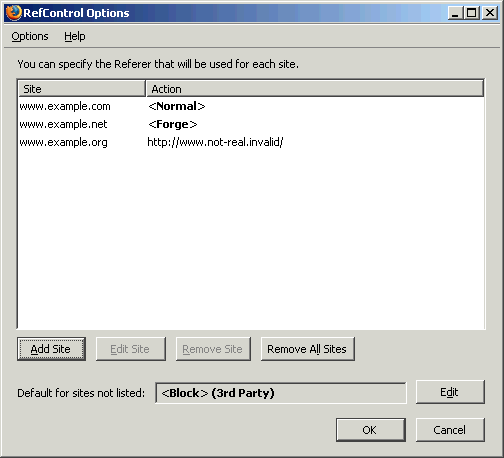
Instructions:
You create a list of sites, and the referrer that should be sent for each site.
To adjust settings for a single site, use the name of that site in the list
(for instance www.example.com).
If you use example.com in the site list then the
action will apply to all sites in the example.com domain (mail.example.com, images.example.com, etc.).
More specific items in the list take precedence. Assume the following settings:
Then the referrer will be forged for requests to www.example.com and it will be blocked for
requests to all other example.com sites.
| Site | Action |
|---|---|
| example.com | <Block> |
| www.example.com | <Forge> |
For the referrer, the following options are available:
- Normal - send the referrer as it would normally be sent without interference from RefControl.
- Block - send no referrer to this site.
- Forge - send the root of the site as the referrer. In the above screenshot, all pages from www.example.net will use http://www.example.net/ as the referrer.
- Custom - type in any string and RefControl will use that as the referrer. You can use variables in this string.
| Page With Link | Page Linked To | 3rd Party Request? |
|---|---|---|
| http://www.example.com/ | http://www.example.net/ | Yes |
| http://www.example.com/ | http://images.example.com/ | Yes |
| http://www.example.net/ | http://www.example.net/page2.html | No |
Additionally, you can specify the default behavior for any site not in the list. You can set
this to something other than Normal if you want to be more protective about your privacy.
Setting it to Block for 3rd Party requests only is a fairly good compromise between
privacy and not breaking sites.
If you change the default behavior and then want a site to get sent the actual referrer,
add it to the list and set it to Normal.
Testing:
There's a test page which will display the referrer
that was sent by your browser. You can use this to test your installation and settings.
If you want to see the referrer that Firefox sent for a page, you can enable the
status bar display. There are two options:
- None - Nothing will appear in the statusbar at all.
- Referer - The Referer will be displayed directly in the status bar, possibly trimmed if it is long. Hovering over this with the mouse will show the full Referer in a tooltip.
Contact: refcontrol <AT> stardrifter.org
Copyright © 2011 James Abbatiello
$LastChangedDate: 2014-12-07 22:32:09 -0500 (Sun, 07 Dec 2014) $